Booking notifications on your phone: know about every booking at once
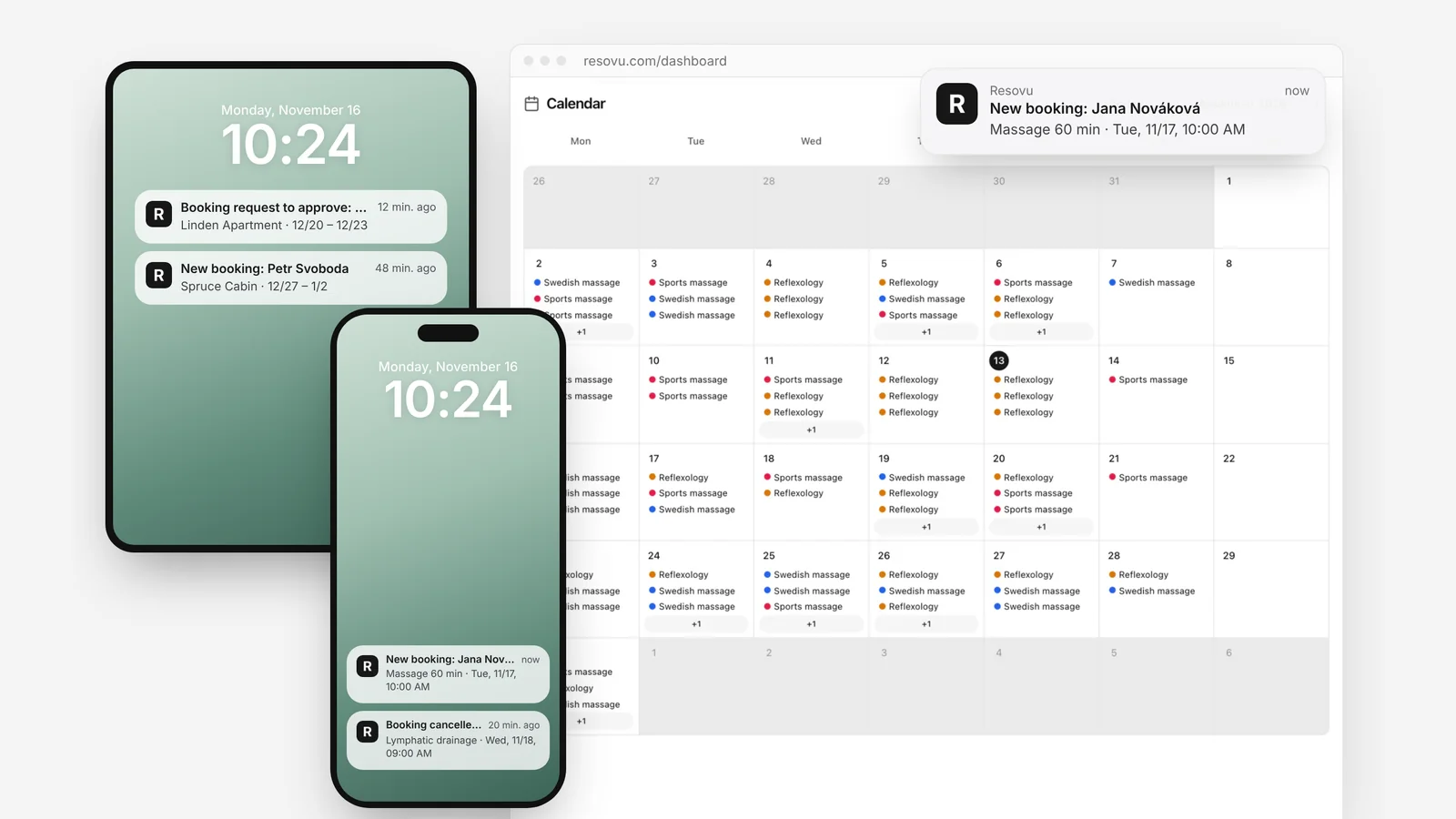
A booking notification is a short message on your phone’s lock screen the moment a customer books, moves or cancels. With Resovu it works on iPhone, iPad, Android and computer without installing an app. Here is what arrives, who gets it, what each device needs and how to keep the lock screen private.
In this article· 7
What is a booking notification on your phone?
A booking notification works like a text message from your booking system: the phone lights up with “New booking: Jana Nováková – Massage 60 min, Tue 10:00”. You see it on the lock screen, on your watch or in the corner of your computer screen, even when Resovu is closed.
It runs on web push, a standard built into today’s browsers (MDN). There is nothing to download from an app store: you turn notifications on in the Resovu dashboard and confirm the browser’s question.
Tapping a notification opens the right page in Resovu, so you can confirm, reply or offer the slot again straight away. All steps are in the help article on notifications.
Which events arrive and who gets them?
- Owner and admins get the same events as under the bell in the dashboard: new, moved and cancelled bookings, new reviews, received payments and new customers.
- Employees get only their own new, moved and cancelled bookings – no one else’s.
- Accommodation also gets booking requests to approve and a warning when a period from a booking portal overlaps a direct booking.
You choose the events once, in the in-app notification preferences. What you switch off there does not reach the phone either, so a busy studio can keep only new bookings and cancellations.
iPhone, iPad, Android and computer: what does each need?
Notifications are switched on per device. Turn them on on every phone, tablet and computer where you want them:
| Device | What to do |
|---|---|
| iPhone and iPad | Add Resovu to the Home Screen (Share → Add to Home Screen), open it from there and turn notifications on. Needs iOS or iPadOS 16.4 or later. |
| Android | Turn notifications on in Chrome. You can also install Resovu as an app from the browser menu. |
| Computer | Chrome, Edge, Firefox or Safari. The browser must be running; on a Mac also allow notifications for the browser in System Settings → Notifications. |
The iPhone rule comes from Apple: since iOS and iPadOS 16.4, notifications work only for web apps added to the Home Screen (WebKit). After adding it you sign in once more – the Home Screen app keeps its own sign-in.
What about privacy on the lock screen?
A notification never contains the customer’s email or phone number – only the name, the service or unit and the time. If the phone lies on the reception desk or colleagues can see it, turn on Hide details on the lock screen. The notification then says only “New booking” or “Booking cancelled”, and the details are one tap away.
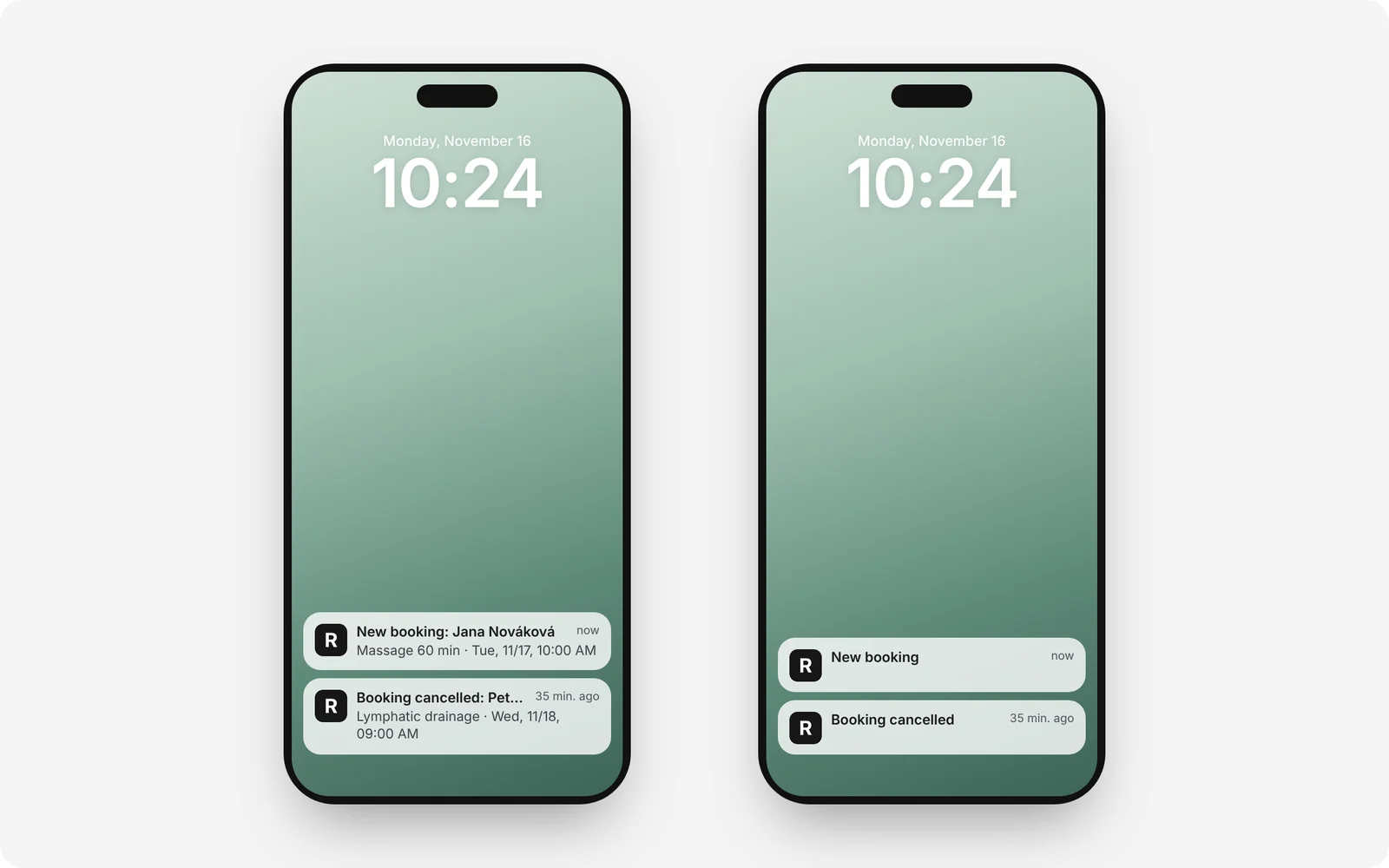
The setting is per device, so you can hide details on the reception tablet and keep them on your own phone. Signing out removes the device, so a shared computer stops getting notifications.
Notifications, email or SMS – which do you need?
Each channel has its job. A notification is for you and your team: it arrives within seconds and tells you to act. The email keeps the full record with the customer’s contact and answers from the booking form. SMS and email reminders go to customers so they do not forget the appointment.
Notifications do not replace email – they are fast on top of it. Many owners keep the email for the record and switch the phone to notifications only for new bookings and cancellations.
How to set it up in Resovu
The short version. The step-by-step guide is in the Help Center.
- On iPhone and iPad first add Resovu to the Home Screen and open it from there.
- Open the user menu → Preferences → Notifications on phone and computer and click Turn on notifications.
- Confirm the browser’s question with Allow.
- Optionally turn on Hide details on the lock screen.
- Click Send a test notification, then repeat on every other device.
Frequently asked questions
Do I need to install an app?
No. Resovu works in the browser. Only on iPhone and iPad must you add it to the Home Screen first, because Apple allows notifications only for web apps added there.
Do customers get notifications too?
No. Notifications are for the business and its team. Customers get confirmations and reminders by email, and by SMS if you use SMS reminders.
What if the phone is off or offline?
The notification is delivered when the device is back online. Nothing is lost – the event is also under the bell in the dashboard and in your email.
Which plan includes notifications?
Every plan from Starter; for accommodation from Accommodation Starter. On the Free plan the dashboard shows which plan you need.
Sources
Related guides from the Help Center
Was this article helpful?
Try it in Resovu
Try online booking for free – no card needed.
Start freeMore articles
All articles GuideWhich automatic messages customers get and how to set them upResovu sends every customer a booking confirmation, an email reminder 24 hours before the appointment and a notice whenever a booking is cancelled or moved. From the Starter plan you can add an SMS 1–72 hours before. Below: what goes out and when, what you can change, and how to set it up and test it.8 min read
 FeaturesWhat the customer portal does for your customersThe customer portal is the part of your booking page where customers manage their own bookings. They log in with an emailed code and reschedule or cancel, book again, download invoices and check points, coupons and gift cards themselves. It is on every plan. Here is what customers find there and what to set up so you take fewer calls.8 min read
 TipsHow to reduce no-shows at your salon or studioYou cut no-shows with a mix of measures: reminders, a clear cancellation deadline, cancellation fees on money paid in advance, deposits for pricier services, customer rescheduling and a waitlist. This guide is for salons, studios and therapists who work with appointments. It shows what no-shows cost you and what to turn on in Resovu, on which plan.8 min read