Store and showroom visits booked from your website or online shop
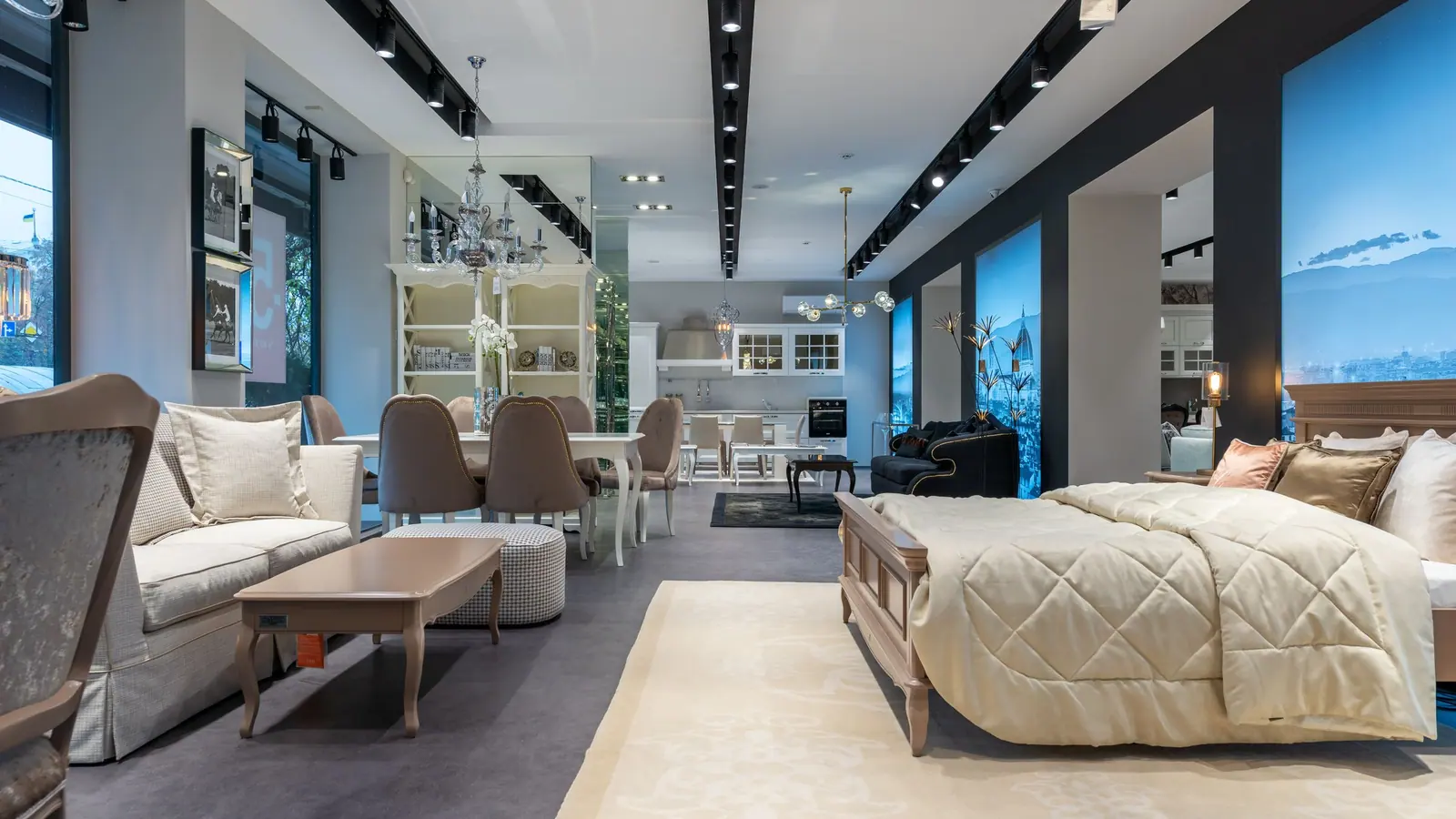
Furniture, mattress, kitchen, bike and bridal shops sell things people want to see or try first. This guide shows how to let customers book a visit straight from a product page in your online shop or a model page on your website, so you know in advance who is coming and what they want to see.
In this article· 8
Why let customers book a store visit?
A customer who drives 40 minutes to try a sofa should find the sofa on display and an advisor with time for them. When they book a visit, both are ready.
- No wasted trips. You can bring the model from the warehouse or prepare fabric samples before the customer arrives.
- An advisor with time. Bookings spread visits across the day instead of everyone arriving on Saturday at 10.
- No back-and-forth. The customer picks a free time in the evening, without calling during opening hours.
- A prepared conversation. You know the product, the variant and the customer's questions before they walk in.
It works the same for an online shop where the product page has an Add to cart button, and for a website without a shop that works as a catalogue of kitchens, bathrooms or wedding dresses.
Example: a mattress shop with two advisors and 45-minute consultations can take up to 20 visits on a Saturday from 9 to 17 without anyone waiting, as long as the visits are booked rather than walk-ins all arriving at once.
Bookings don't have to replace walk-ins. People passing by still come in as before; a booking just guarantees time for those who travel to see you.
Where should the booking button go?
Put the button where the customer is deciding, and keep it from competing with buying online.
| Where | Online shop | Website without a shop |
|---|---|---|
| Product or model page | A discreet line under Add to cart: “Try it in store – pick a time” | The main call to action: “See it in our showroom” |
| Header or menu | Optional | “Book a visit”, visible on every page |
| Contact / Our stores | Next to opening hours | Next to opening hours |
| Offline | QR code on the flyer in parcels | QR code in the shop window or on a flyer |
In an online shop, put the code into the product page template, not into the product description. Descriptions often end up in product feeds for comparison sites, and one template change covers all products.
Different products can lead to different services. Add data-service with the service ID to the code, and the booking opens straight on, say, “Mattress consultation” on mattress pages and “Kitchen design” on kitchen pages, each with its own length and advisors.
What carries over into the booking?
The Booking for a product or page code reads the product from the page the customer clicked on, together with the page address.
- Shoptet, Shopify, WooCommerce: the product name and the selected variant with its code, for example size and firmness of a mattress.
- Other shops and websites: the name and code from schema.org structured data, or the og:title, the main heading or the page title.
- Your own name: on a general page you can set a fixed name such as “Kitchen studio” with data-context.
The customer sees the product in the booking and the confirmation. You see it in the booking detail and in your new-booking e-mail, with a link to the page. On WordPress with WooCommerce, the Resovu Booking plugin can add the button to every product page and sends the SKU too.
In the morning the advisor opens today's bookings and sees, for example: “10:00, Jane D., Comfort mattress 160 × 200, firmness H3, link to product”. They know what to prepare and don't have to ask again for what the customer already filled in.
What should you ask in the form?
Two or three questions that help the advisor prepare are enough. A longer form puts people off before they book.
- “What would you like to try?” – pre-filled with the product from the page, so the customer only checks it.
- “Approximate dimensions of the room” for kitchens and wardrobes.
- “Anything we should prepare?” – fabric samples, a specific colour, a second size.
Own form fields, including Pre-fill from the web page, are available from the Starter plan. On the Free plan the booking still carries the product and page address; you just can't add your own questions.
Answers show in the booking detail under Form answers and in your new-booking e-mail. Form fields apply to the whole form, so to all services. Be careful with required fields: a required room size puts off a customer who doesn't know it yet.
How do you set times, advisors and notice?
Create a service such as “In-store consultation” or “Showroom visit”. With a price of 0 it shows as free. A length of 45 to 60 minutes suits most consultations; add a break after it if advisors need time to tidy up.
Each advisor is a staff member with the service ticked and their own hours, so customers book free times of a real person. Set a Minimum notice that matches your logistics. Example: if bringing a model from the warehouse takes two days, set 48 hours. A customer booking on Monday at 15:00 then sees Wednesday 15:00 as the earliest time.
Booking from a product page, the on-site window and e-mail reminders are on every plan, including Free.
Online bookings and the ones you enter after a phone call share one calendar, so advisors' times never overlap. A walk-in customer is entered with New booking and the time disappears from the booking page.
Set Book up to as well. Thirty days ahead is usually enough for a showroom visit; a longer window fills your calendar with visits that people forget about.
How do you measure visits and cut no-shows?
If your shop or website uses Google Analytics 4 or Meta Pixel, enter the ID in Resovu. Each booking is sent as a conversion after the visitor accepts cookies, so you see how many store visits a campaign or product page brought.
A confirmed booking made more than 24 hours ahead gets an e-mail reminder 24 hours before the visit. For customers who rarely read e-mail add SMS reminders from the Starter plan, sent through your own BulkGate or seven.io account at 1 to 72 hours before. With Customers can change the time themselves turned on, a customer who can't make it moves the visit instead of not turning up.
In Analytics (from the Starter plan), Booking sources splits bookings by channel – the booking embedded on your site, your Resovu booking page and the visits you entered yourself. To compare a campaign with a flyer or a product page, use the Google Analytics or Meta Pixel data above.
A free consultation with no deposit is the easiest for customers. If people often fail to turn up, you can ask for a deposit on longer services such as kitchen design; deposits are available from the Business plan.
How to do it in Resovu
The short version. The step-by-step guide is in the Help Center.
- Services → Add service: create “In-store consultation” with its duration and price 0, then tick it for each advisor in Staff.
- Settings → Opening hours & times: set Minimum notice (for example 48 h) and Book up to.
- Settings → Booking → Advanced configuration → Form fields: add a text field and switch on Pre-fill from the web page (Starter plan).
- Settings → Embed: copy the Booking for a product or page code and paste it into your product page template or model page.
- Open a product, click the button and make a test booking – the booking detail shows the product and page.
Frequently asked questions
Will the customer leave my online shop?
No. The booking opens in a window on the product page, and after closing it the customer is back where they were, cart included.
Does it work without an online shop?
Yes. Any website where you can add HTML code works: WordPress, Wix, Squarespace or your own site. Resovu takes the model name from the page.
Can I put one button in the menu instead of on every model?
Yes. The booking then records the page the customer clicked from, so you still see where they came from.
Does it cost a commission per visit?
No. Resovu takes no commission on bookings. If you take a paid deposit by card, the per-plan card fee (0–1 %) and Stripe's fee apply.
Related guides from the Help Center
Was this article helpful?
Try it in Resovu
Try online booking for free – no card needed.
Start freeMore articles
All articles NewsResovu Booking plugin is now on WordPress.orgSince 2 November 2026 the free Resovu Booking plugin is listed in the official WordPress.org directory. If your website runs on WordPress, you install it from the dashboard like any other plugin and add booking for appointments or accommodation with a block, a shortcode or a floating button.4 min read
 TipsHow to reduce no-shows at your salon or studioYou cut no-shows with a mix of measures: reminders, a clear cancellation deadline, cancellation fees on money paid in advance, deposits for pricier services, customer rescheduling and a waitlist. This guide is for salons, studios and therapists who work with appointments. It shows what no-shows cost you and what to turn on in Resovu, on which plan.8 min read
 GuideHow to move from a paper diary to online bookingA paper diary works until clients want to book at 10 pm, a colleague needs to check a slot or someone forgets an appointment. This guide is for salons, therapists and tutors who still book by phone: what changes, a four-week switch plan and the exact Resovu steps.7 min read